
See what’s new in Blanc
What’s new · Blanc 1.44 · October 27
Read articles without the clutter
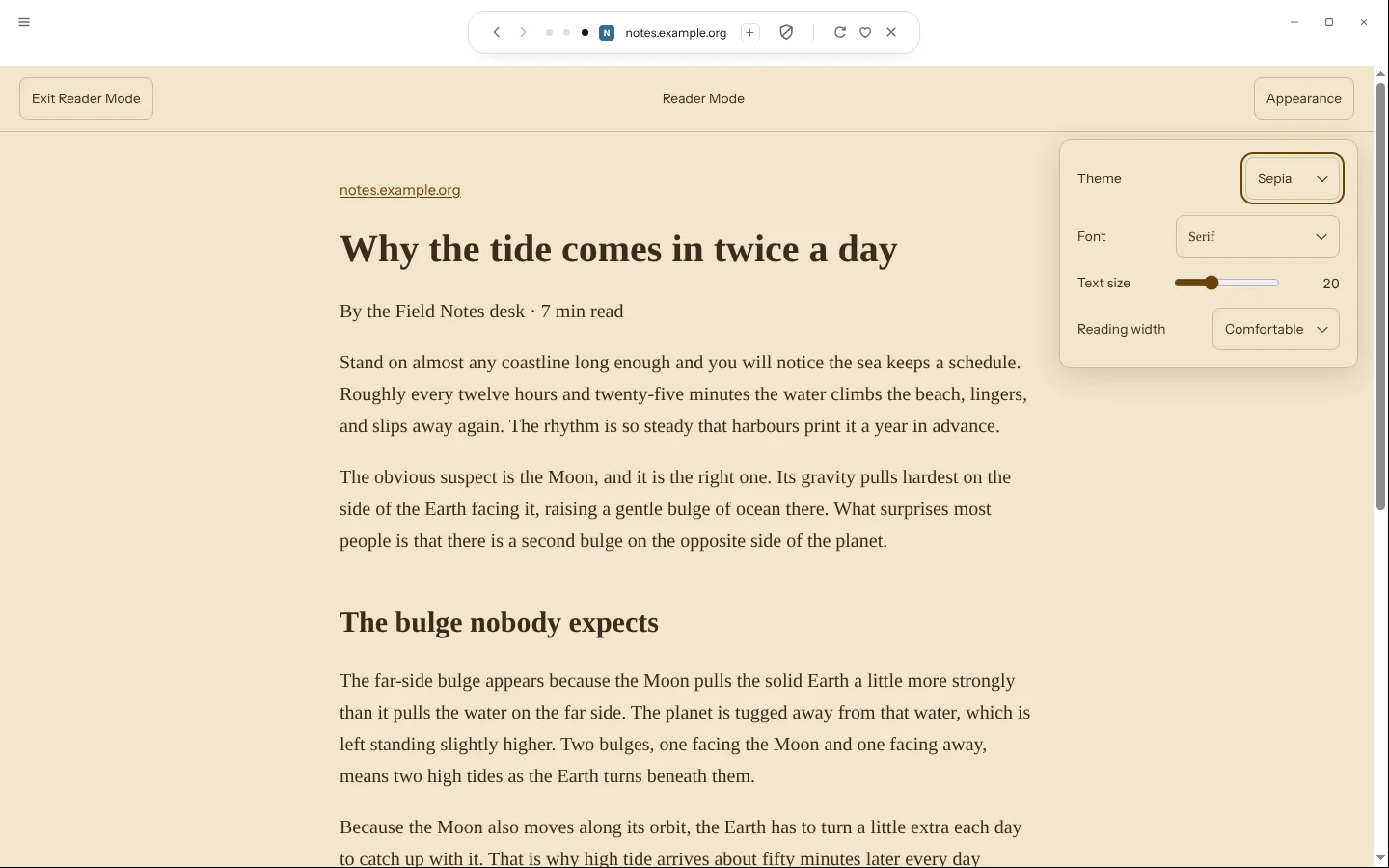
Reader Mode lifts the article out of the page you’ve already loaded, on your computer, and keeps its headings, links, images, tables and code. It’s free, and leaving it returns to the page as you left it, without reloading.
- Type /reader, or choose Enter Reader Mode when the expanded Island offers it.
- Pick System, Light, Dark or Sepia, a typeface, a text size and a width. Blanc remembers them on this device.
Some pages aren’t articles. On those, Blanc says so and leaves the page as it was.
What’s new · Blanc 1.44 · October 27
Move tabs and groups between spaces
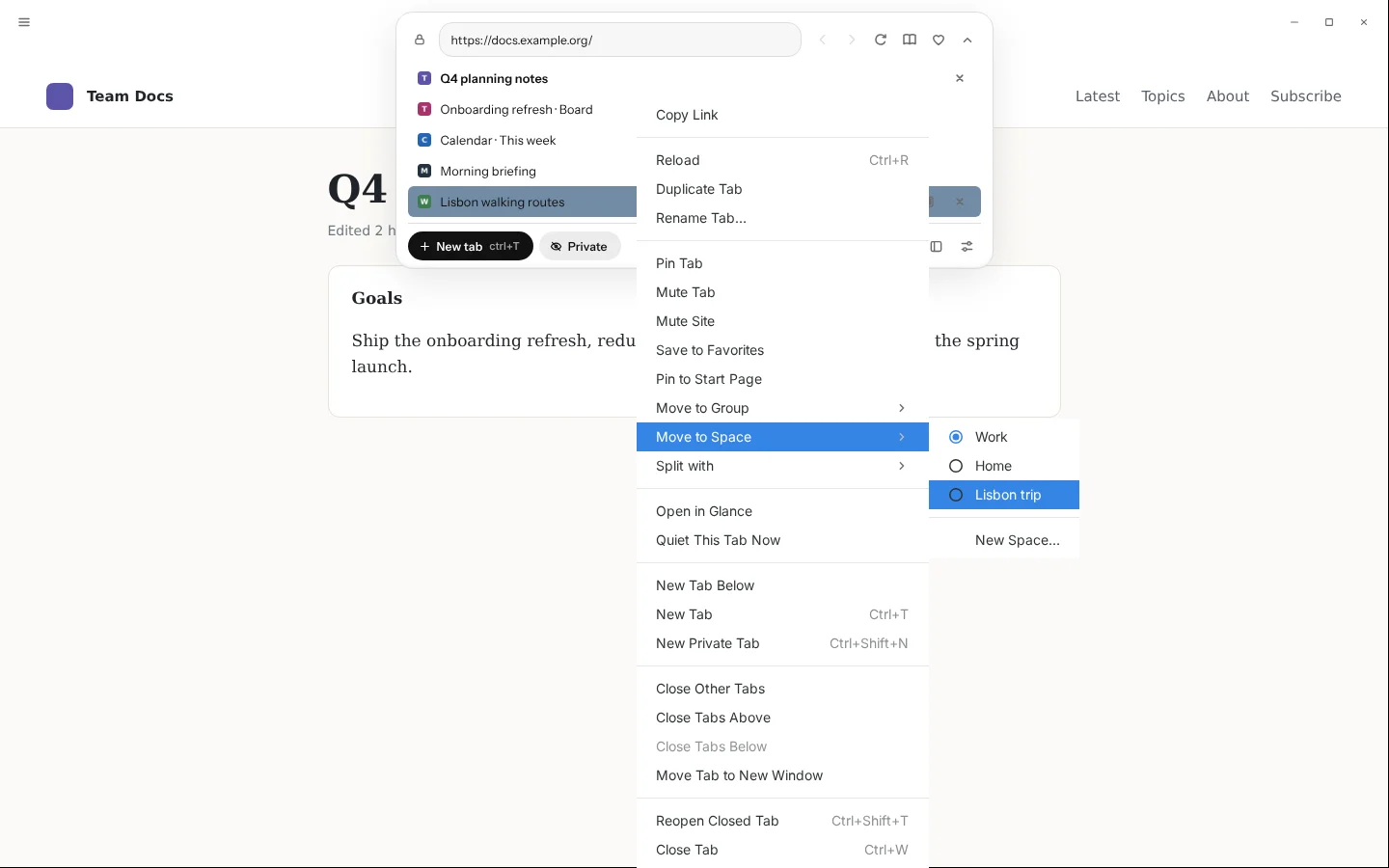
Move a tab, as it is, to the end of another space without leaving the window you’re in. A whole group moves with its name and colour, and a link can open straight in another space.
- Right-click a tab, choose Move to Space, then pick a space or New Space….
- For a whole group, use Move Group to Space; for a link, Open Link in Space.
These appear once you have a space. Private tabs don’t offer them.
What’s new · Blanc 1.44 · October 27
Act on several tabs at once
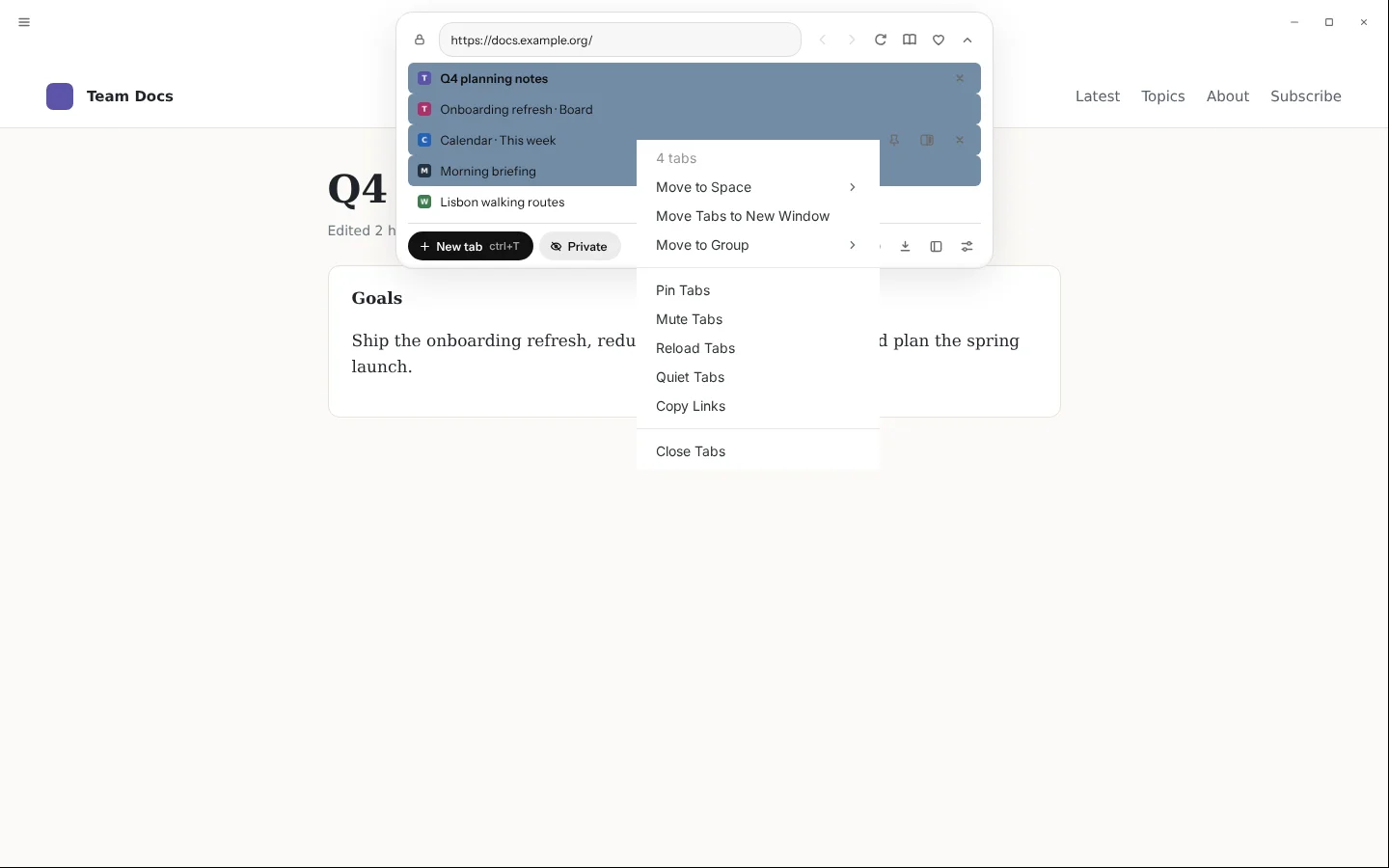
Select tabs in the ⌘L panel or in vertical tabs, then move, group, pin, mute, reload, quiet, copy the links of or close them all together. Closing them is one entry in Recently closed.
- ⌘-click (Ctrl-click on Windows and Linux) to add or remove a tab, or Shift-click to select a range.
- Right-click a selected tab and choose what to do with all of them.
What’s new · Blanc 1.44 · October 27
Send a page to your other devices
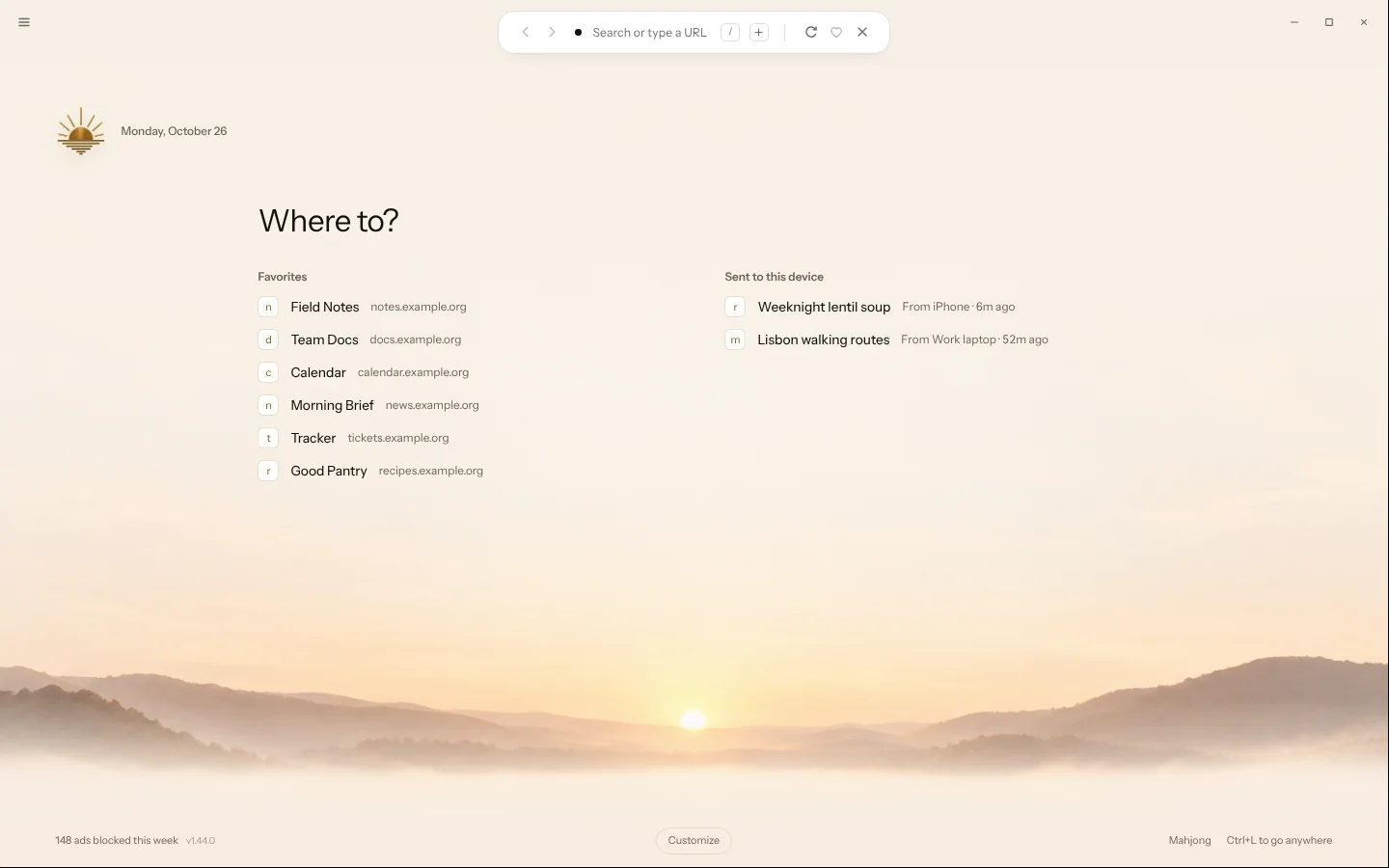
Send the page you’re on to another of your synced Blanc devices. It waits there in Sent to this device, and nothing opens by itself. Pages stay up to 7 days.
- Right-click the tab and choose Send to Device, then a device, or type /send and the device’s name.
- On the other device, find it at the top of the Other devices drawer or on the Ledger start page.
Sending needs Profile Sync on both devices. Private tabs and internal pages can’t be sent.
Recently · Blanc 1.43 · October 24
Watch protected video and music
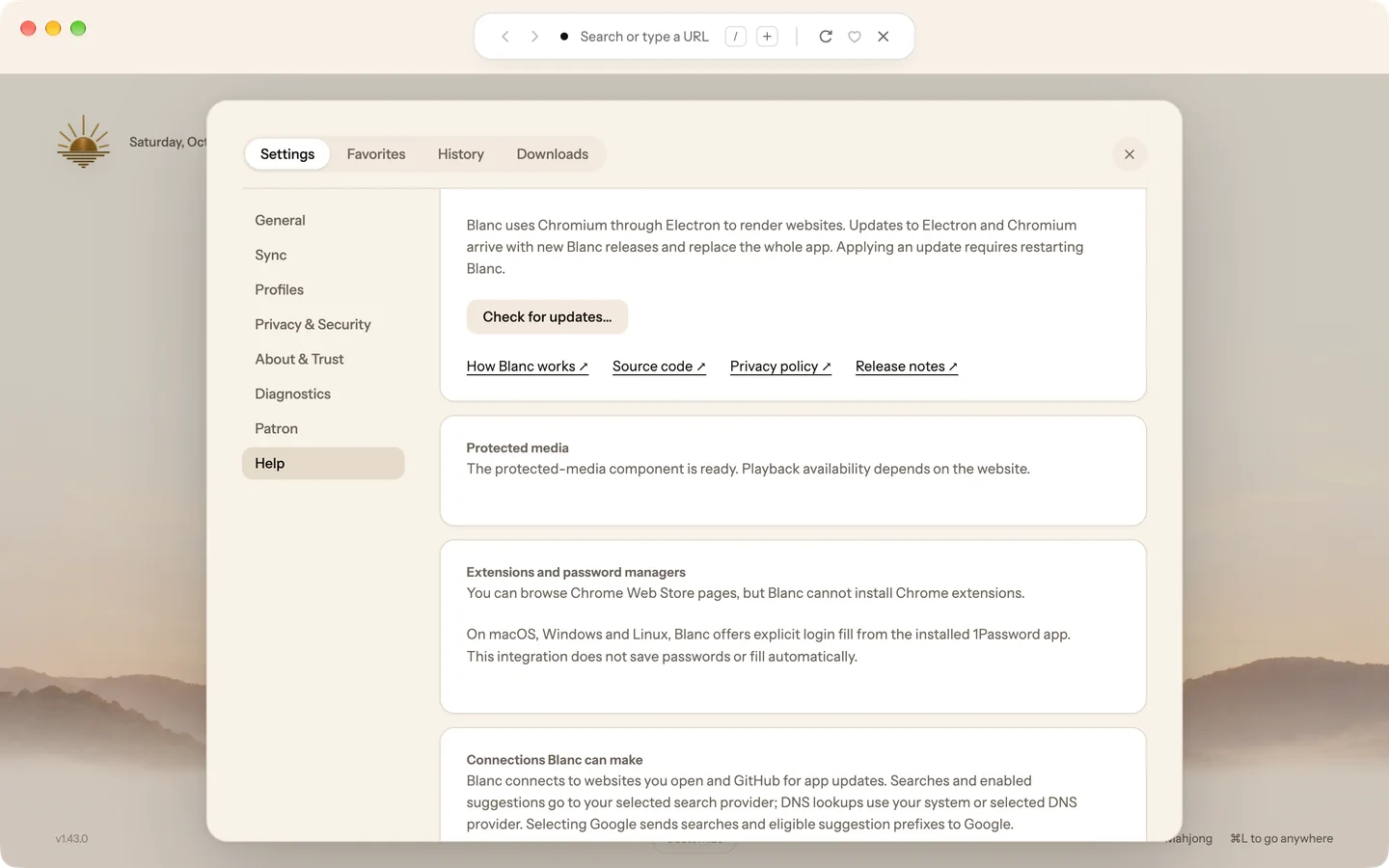
Blanc now plays video and music that sites protect with Widevine DRM, on Mac, Windows and Linux. Netflix and Spotify were tried on an Apple Silicon Mac; whether a particular site plays still depends on that site.
- Keep browsing while Blanc downloads the Widevine component from Google in the background.
- Open Settings, then Help, to see when Protected media is ready.
On Linux, Blanc asks you to restart once the component is installed, and again after it updates.
Recently · Blanc 1.43 · October 24
Two new glass app icons
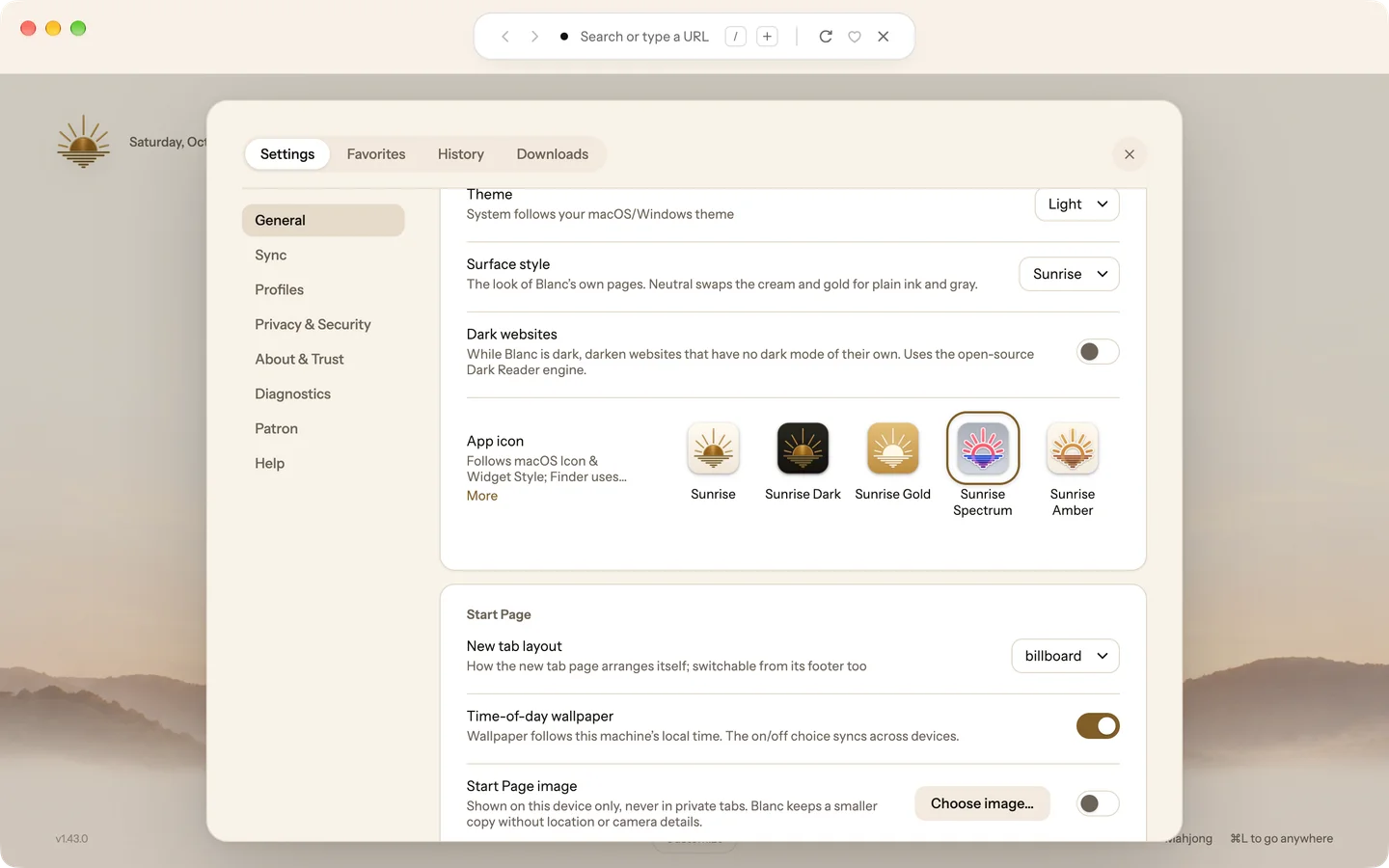
Sunrise Spectrum and Sunrise Amber redraw the Sunrise in glass: a ring sun, rays and water lines inside a white outline. Spectrum is coral and red over royal blue; Amber is gold over bronze. Both turn dark in Dark mode.
- Open Settings, then General.
- Under App icon, choose Sunrise Spectrum or Sunrise Amber.
Recently · Blanc 1.43 · October 24
A plainer look for Blanc’s own pages
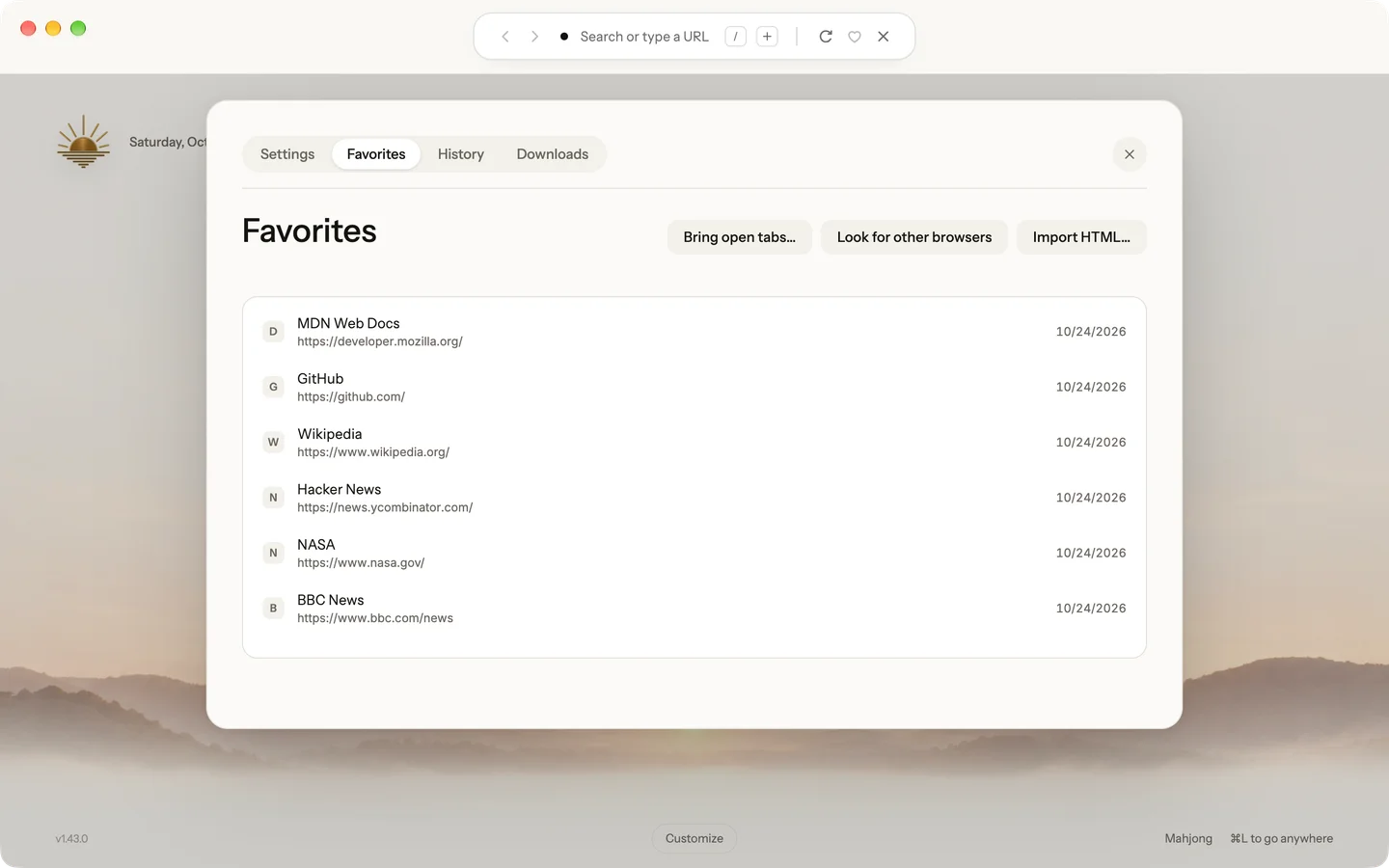
The new Neutral surface style swaps the cream and gold of the Start Page, Favorites, History, Downloads and Settings for plain ink and gray, in Light and Dark. Sunrise stays the default.
- Open Settings, then General.
- Set Surface style to Neutral.
Wallpapers, app icons and the Sunrise mark don’t change.
Recently · Blanc 1.41 · October 21
Make the clock your own
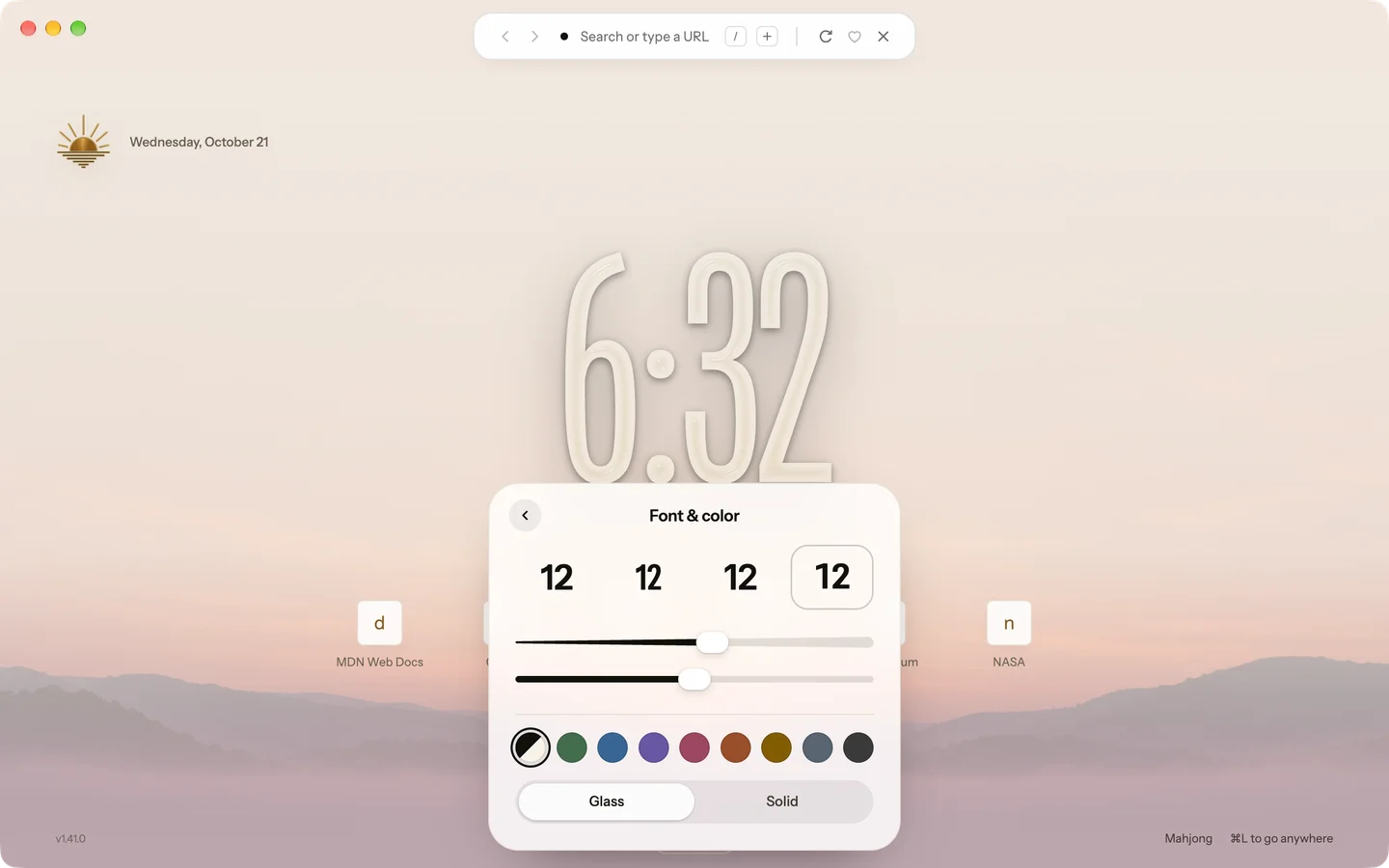
Choose the Billboard clock’s font, weight, height and color, as on the iOS Lock Screen. Glass bends the wallpaper behind the numerals; Solid draws them flat.
- On the Start Page, right-click the clock.
- Pick a font, then drag Weight and Height and choose a color.
Or open Customize and choose Clock. Every clock now has a soft shadow, so it reads on any wallpaper.
Want every detail? Read the full changelog on blanc.day