
See what’s new in Blanc
What’s new · Blanc 1.45 · October 28
Keep your Spaces the same on every computer
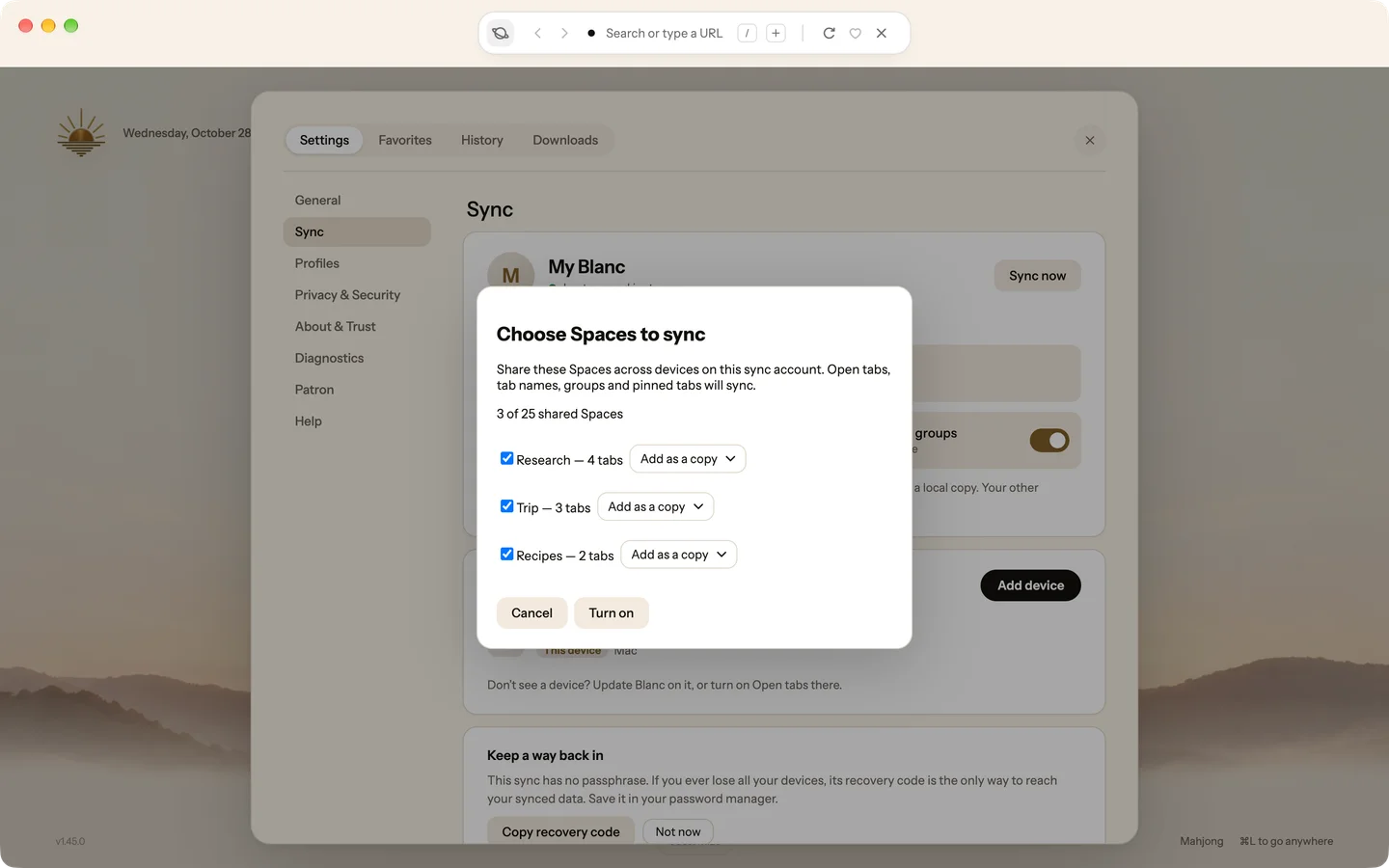
Choose Spaces to share, and their open tabs, tab names, groups and pinned tabs match on each computer that has it turned on. A change on one appears on the others, end-to-end encrypted like the rest of Sync.
- With Sync on, open Settings, then Sync.
- Under What syncs, turn on Spaces and groups and choose your Spaces. Do the same on each computer.
It’s off by default and belongs to the Personal profile. Private tabs, internal pages and local files never sync.
What’s new · Blanc 1.45 · October 28
Pair Blanc for iPhone by scanning a code
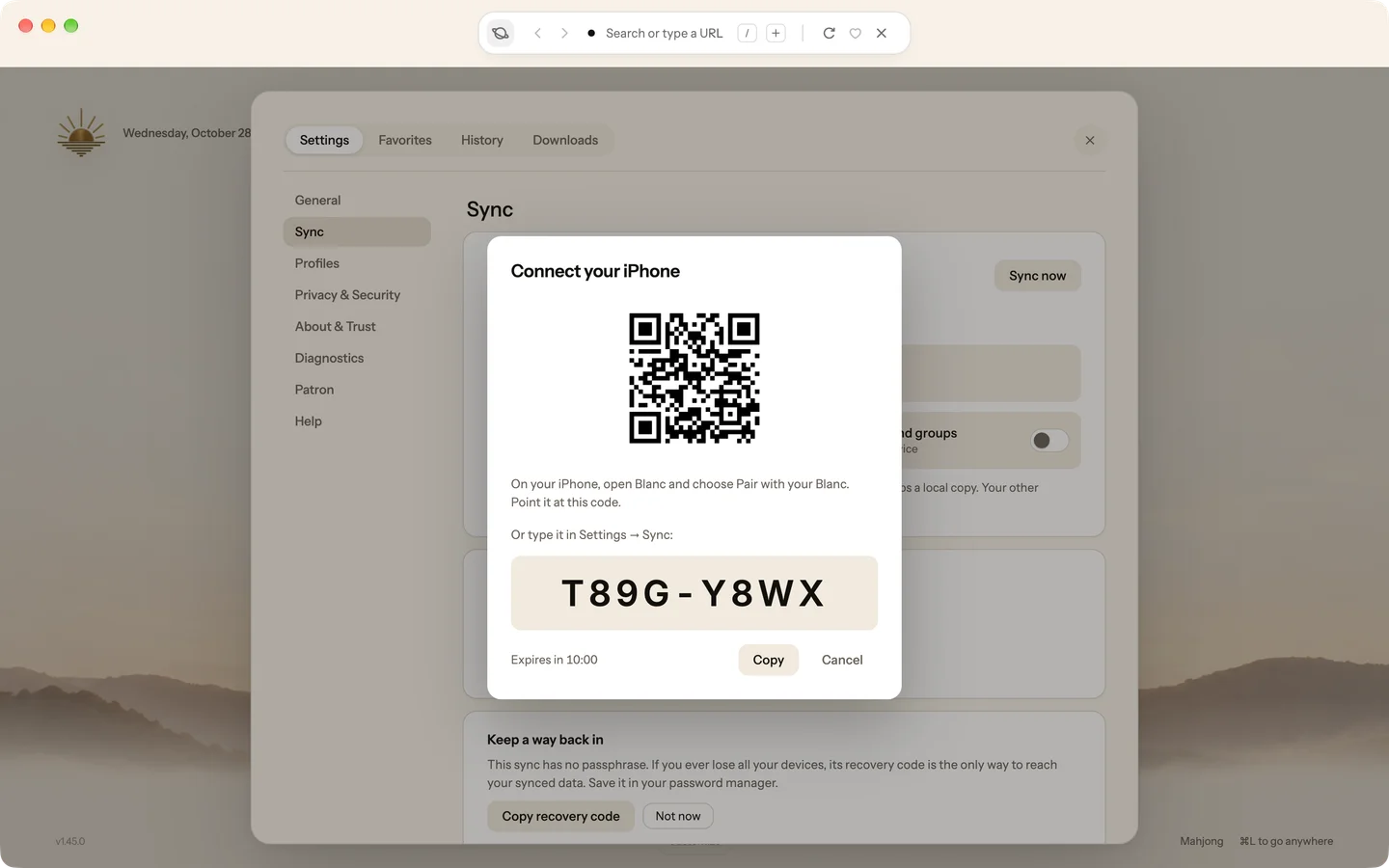
Blanc for iPhone is in a public beta on TestFlight. Your computer shows a code, your iPhone scans it, and it joins your Sync, so your Favorites and your other devices’ tabs come with you.
- In Settings → Sync, choose Connect your iPhone. It’s also in the Start Page’s Finish setup list.
- On your iPhone, open Blanc, choose Pair with your Blanc and point it at the code.
If Sync isn’t on yet, Blanc asks before turning it on. When Sync is on, Add device shows the same code.
What’s new · Blanc 1.45 · October 28
Turn on Sync with nothing to remember
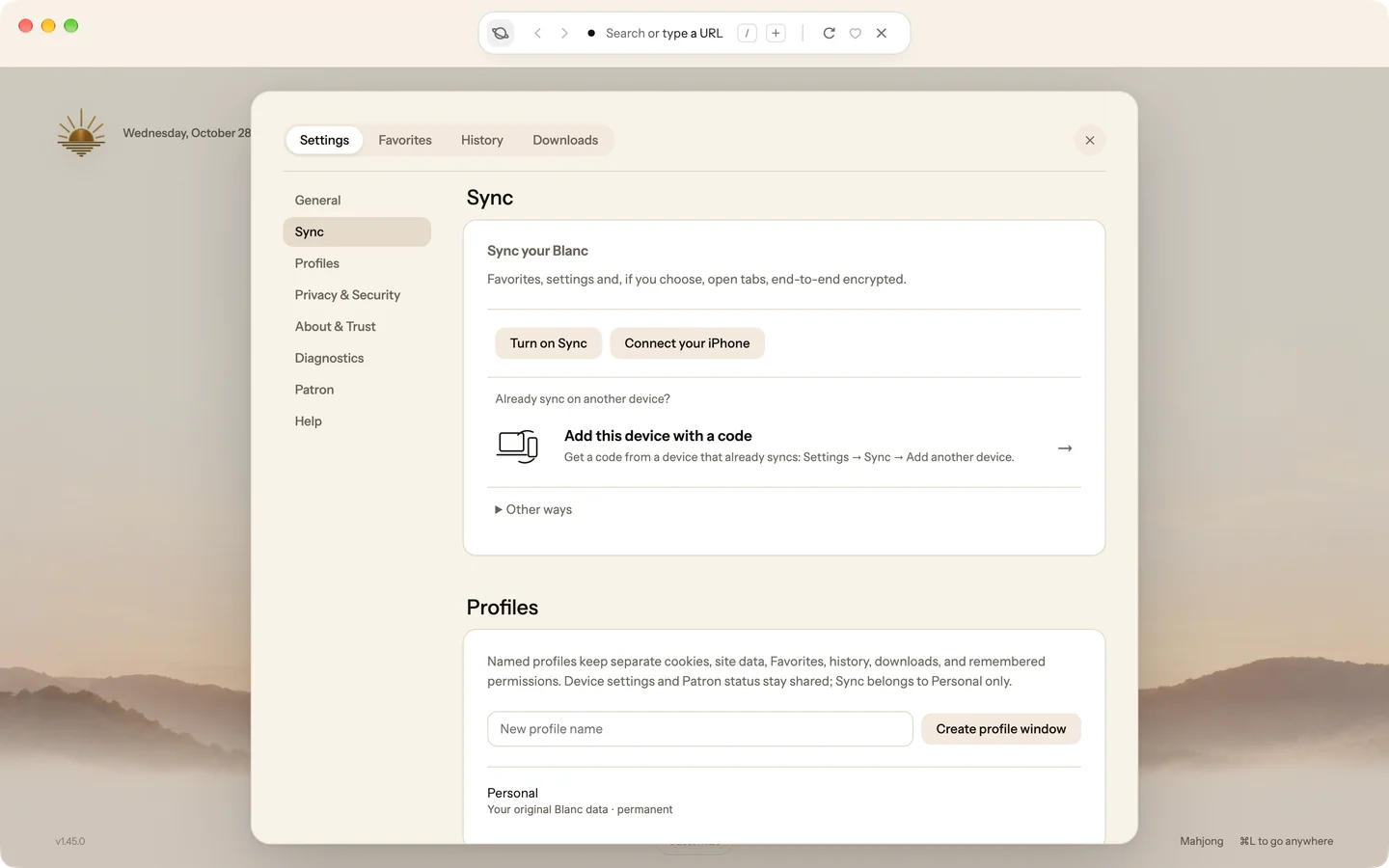
Turn on Sync starts syncing this computer straight away, with no name or passphrase to make up. Add your other devices with a short code, and the sheet tells you when one has joined.
- Open Settings → Sync and choose Turn on Sync.
- To add a device, choose Add device and enter the code on the other device with Add this device with a code.
Keep the recovery code Blanc offers in your password manager: without a passphrase, it’s your only way back if you lose all your devices.
What’s new · Blanc 1.45 · October 28
Start the day with the Sunrise
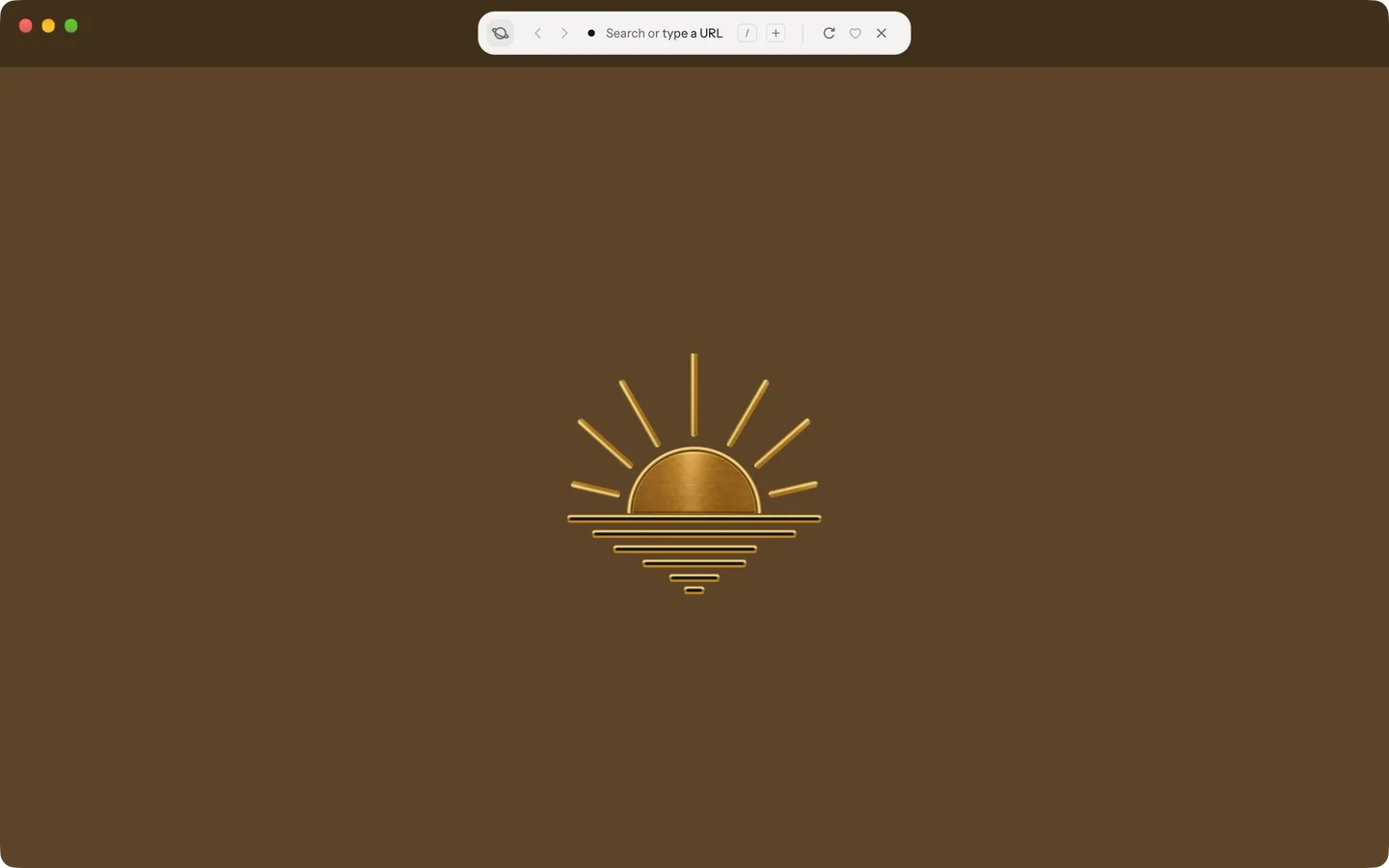
Turn it on, and the first Start Page after Blanc opens plays the Sunrise once, over the page as it already looks. Any click or key ends it.
- Open Settings → Appearance and turn on Play the Sunrise when Blanc opens.
It’s off by default, set on each device, and skipped when your system reduces motion.
Recently · Blanc 1.44 · October 27
Read articles without the clutter
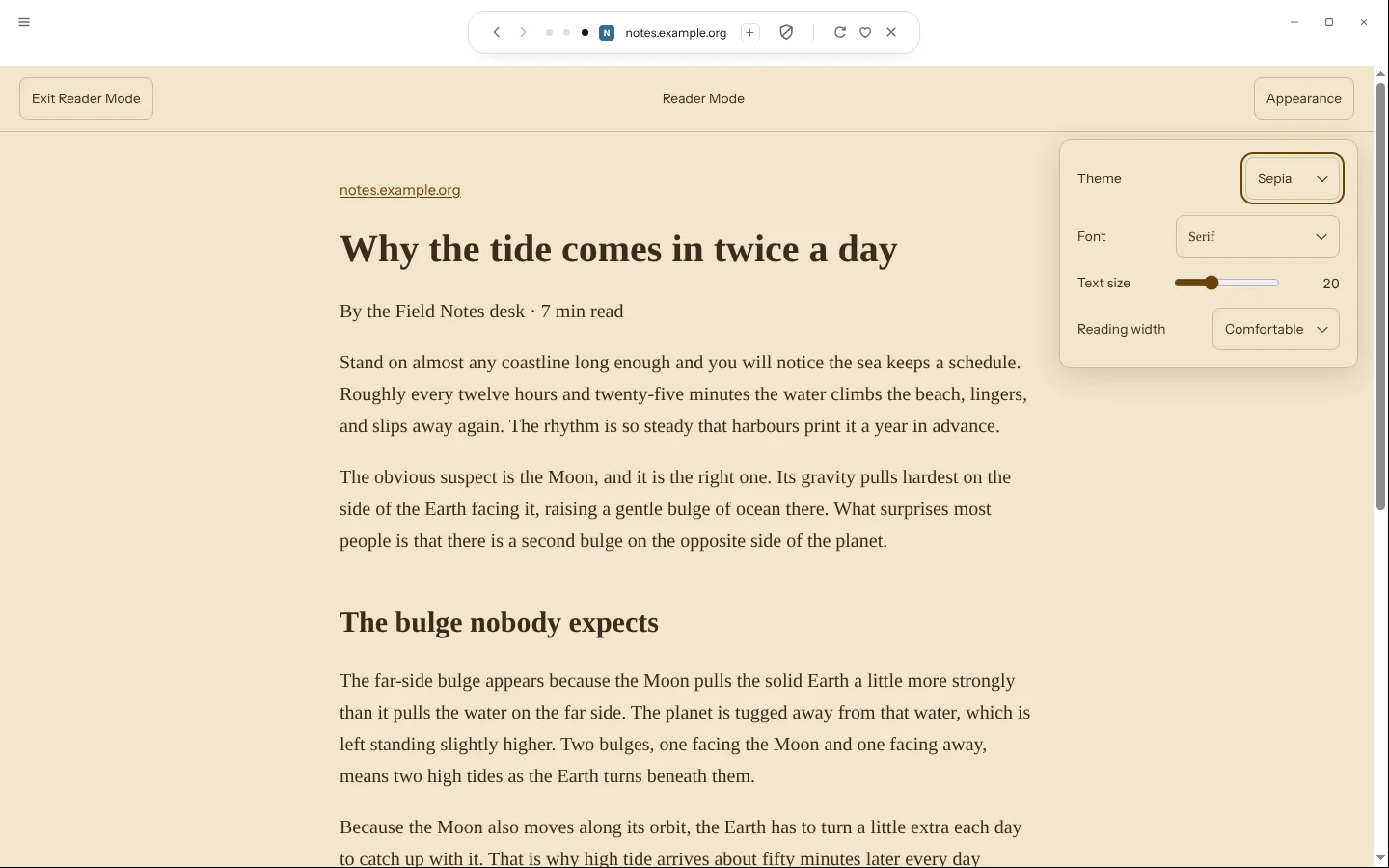
Reader Mode lifts the article out of the page you’ve already loaded, on your computer, and keeps its headings, links, images, tables and code. It’s free, and leaving it returns to the page as you left it, without reloading.
- Type /reader, or choose Enter Reader Mode when the expanded Island offers it.
- Pick a theme, typeface, text size and width. Blanc remembers them on this device.
Some pages aren’t articles. On those, Blanc says so and leaves the page as it was.
Recently · Blanc 1.44 · October 27
Move tabs and groups between spaces
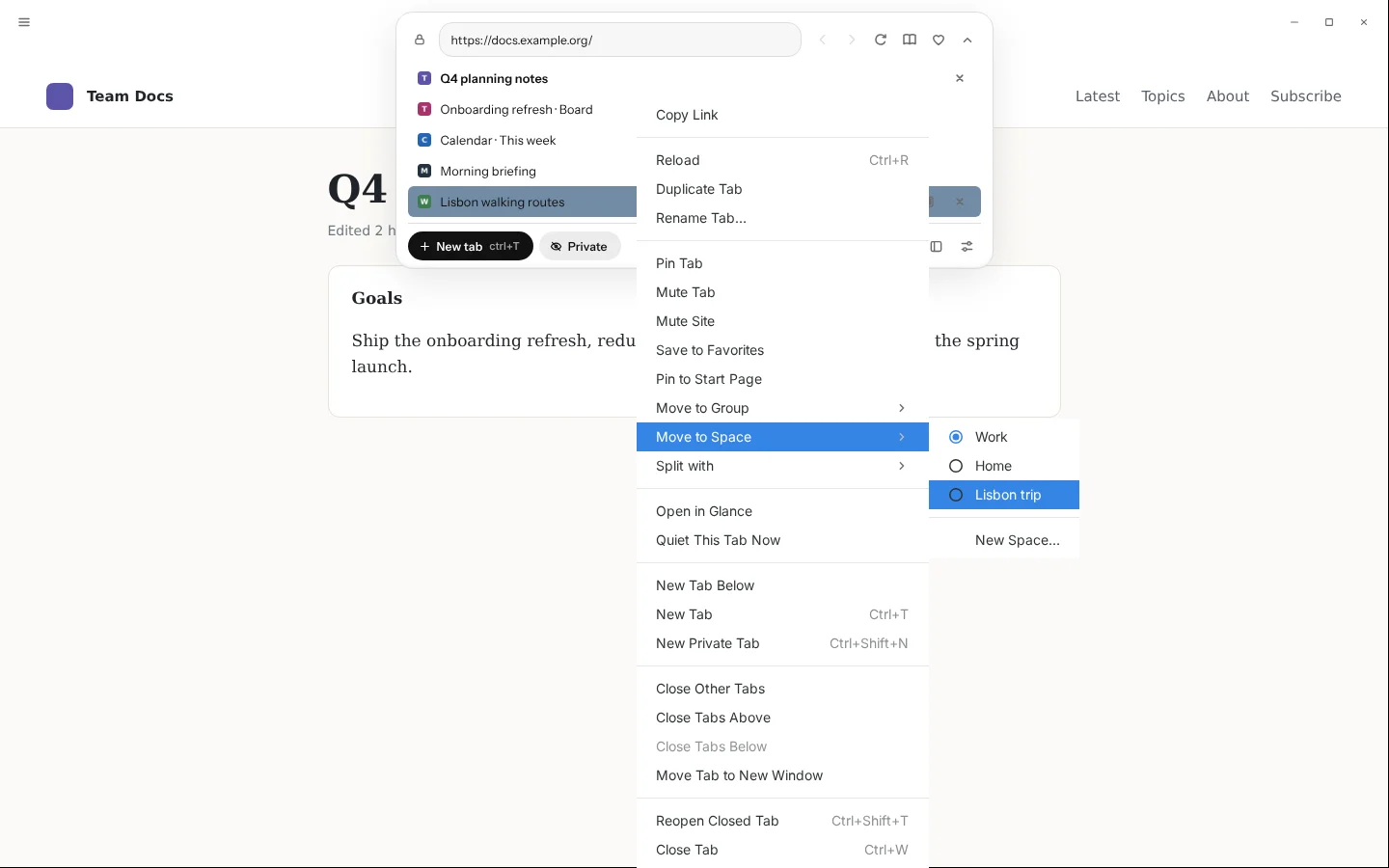
Move a tab, as it is, to the end of another space without leaving the window you’re in. A whole group moves with its name and colour, and a link can open straight in another space.
- Right-click a tab, choose Move to Space, then pick a space or New Space….
- For a whole group, use Move Group to Space; for a link, Open Link in Space.
These appear once you have a space. Private tabs don’t offer them.
Recently · Blanc 1.44 · October 27
Act on several tabs at once
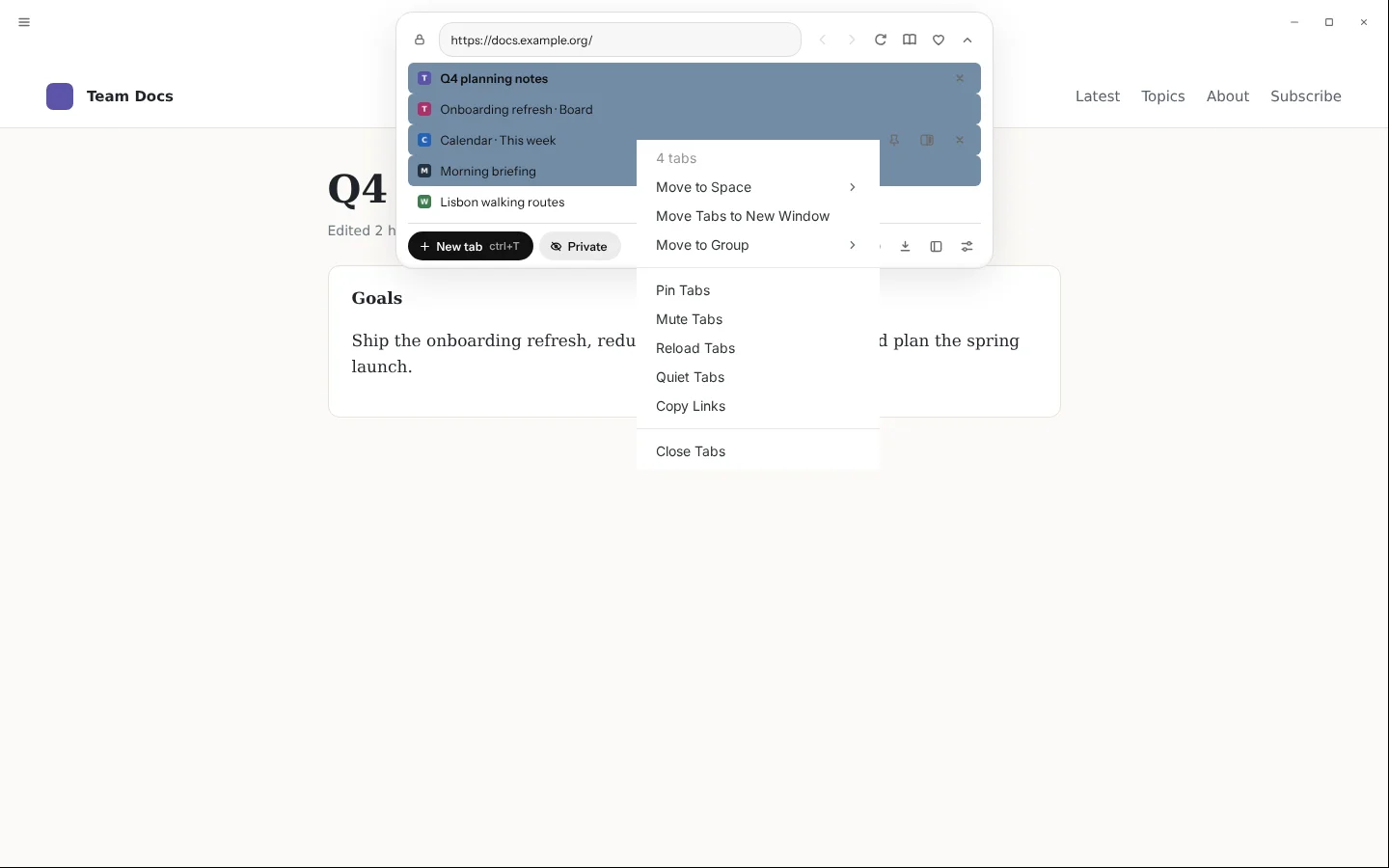
Select tabs in the ⌘L panel or in vertical tabs, then move, group, pin, mute, reload, quiet, copy the links of or close them all together. Closing them is one entry in Recently closed.
- ⌘-click (Ctrl-click on Windows and Linux) to add or remove a tab, or Shift-click to select a range.
- Right-click a selected tab and choose what to do with all of them.
Recently · Blanc 1.44 · October 27
Send a page to your other devices
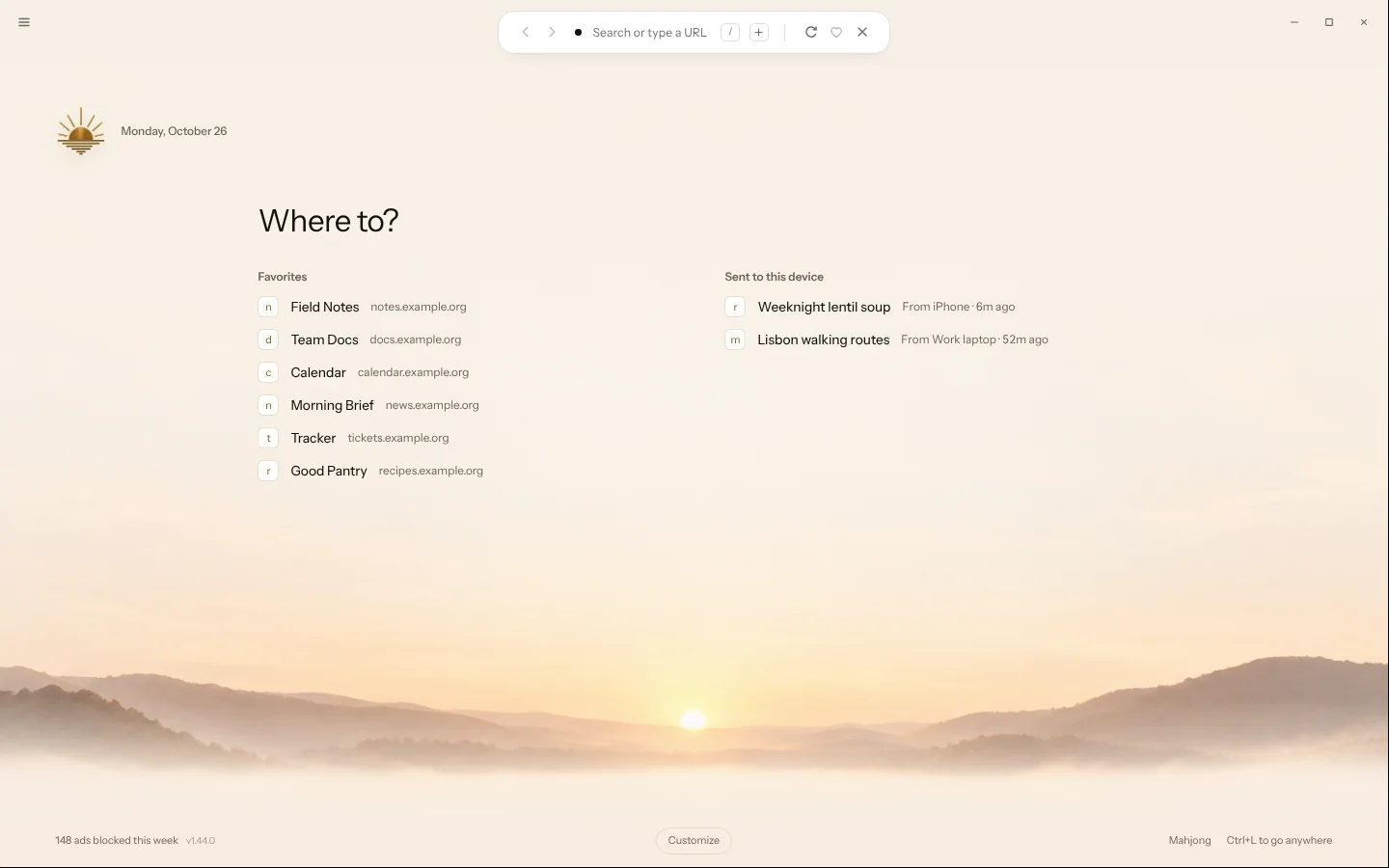
Send the page you’re on to another of your synced Blanc devices. It waits there in Sent to this device, and nothing opens by itself. Pages stay up to 7 days.
- Right-click the tab and choose Send to Device, then a device, or type /send and the device’s name.
- On the other device, find it at the top of the Other devices drawer or on the Ledger start page.
Sending needs Profile Sync on both devices. Private tabs and internal pages can’t be sent.
Want every detail? Read the full changelog on blanc.day